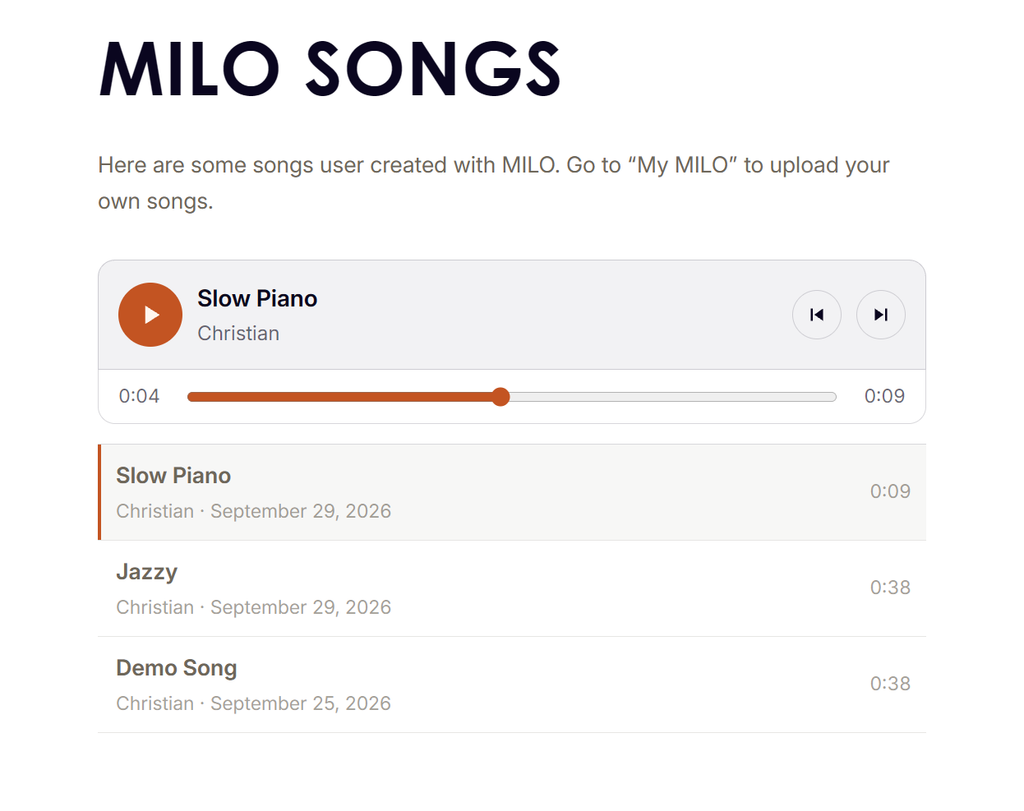
Made something on MILO you’re proud of? You can now put it on the website for everyone to hear. The songs other MILO owners have shared are on the new MILO Songs page, and yours can be next.
How to share a song
1. Connect MILO to your computer with its USB cable and switch it on. 2. Open My MILO in Chrome or Edge and click Connect to MILO 3. Open the Songs tab and click the song you want to share. 4. Click Share on website. 5. Give your song a title and add your name, if you like. If not, your song appears as “Untitled” by “Anonymous”. 6. Tick the box to confirm that you are happy for it to be public, then click Share.
MILO now plays your song through once to record it, so this takes about as long as the song itself. Leave MILO connected until the page tells you it’s done.
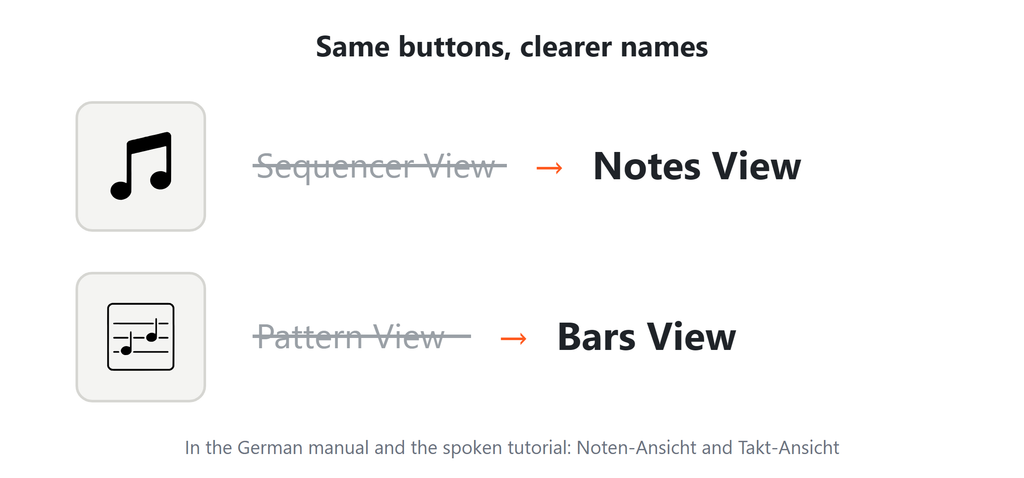
This update is only about names. Two of MILO’s views were renamed so that each name says what you actually do there. No button has moved, and nothing works differently.
What stays the same
The same buttons, doing exactly what they did before.
Your saved songs are untouched.
MILO’s spoken tutorial use the new names. In German they are the Noten-Ansicht and the Takt-Ansicht.
How to get it
The new names arrived with firmware 0.43. If your MILO is older, update it on the Firmware Update page. The update also puts the latest user manual onto MILO’s memory card, so you have the new names there as well.
If you have tried chords on MILO’s guitar, you may have noticed they sounded a little like a keyboard pretending to be a guitar. With the latest update, that has changed.
Listen first
Before
After
The same six chords at the same speed and the same volume. Only the guitar changed.
What’s different
1. The fingers go where a guitarist’s would
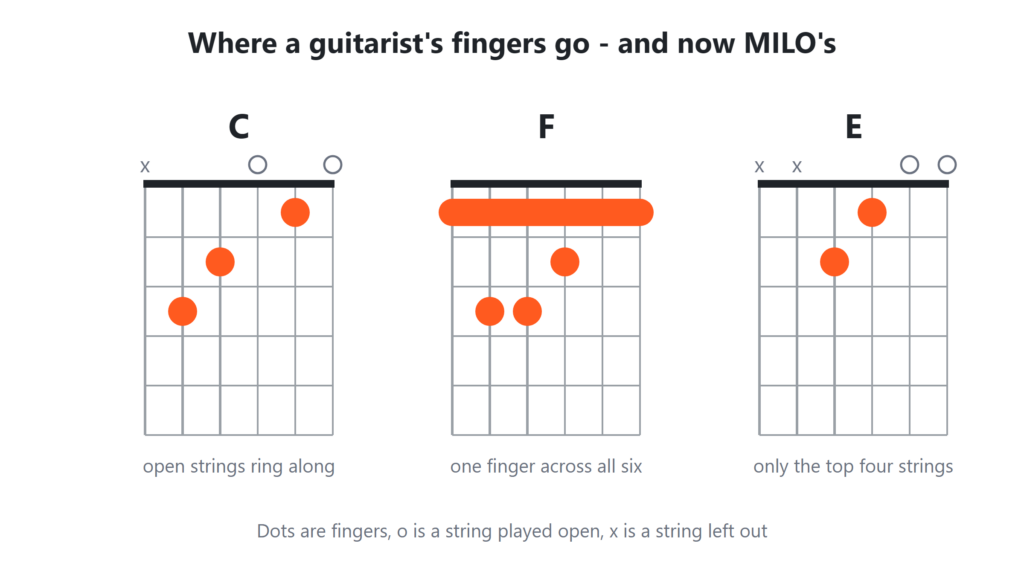
Before, MILO built every chord the same way: one stack of notes, simply slid up or down. A real guitarist doesn’t play like that. Every chord has its own finger position, called a “shape”. Some let a few strings ring freely, and others need one finger pressed across all six strings at once. MILO now knows these shapes and picks the right one for every note you press.
2. Every string has its own voice
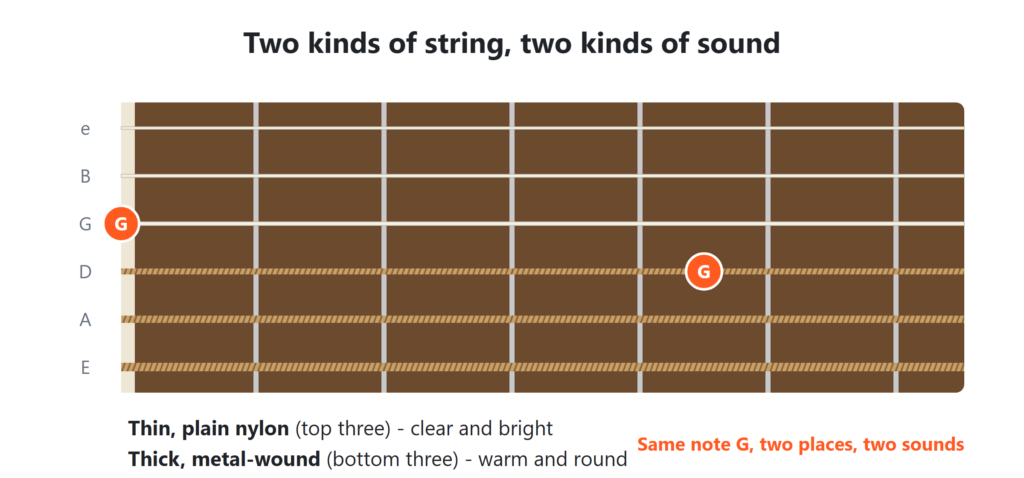
A classical guitar has two kinds of string. The three thin ones are plain nylon and sound clear and bright. The three thick ones are wrapped in fine metal wire and sound warm and round. The same note can often be played on either kind, and it sounds different on each.
Now there are samples for differnt string and note combinations. So when a chord puts a note on a thick string, you now hear a thick string. Listen to the same note G, first on a thick string, then on a thin one, twice:
3. Soft, medium and hard
Every sample has three variations now: plucked softly, normally and hard. A harder pluck doesn’t only sound louder, it sounds brighter too, just like a real guitar.
How to get it
Update MILO on the Firmware Update page. It installs the new firmware and the new guitar sounds in one go, and takes a few minutes.
The new guitar recordings come from the University of Iowa Musical Instrument Samples, recorded by Lawrence Fritts.
Until now, MILO’s spoken tutorial covered the basics: pick an instrument, place a few notes, play them, save your song. Everything beyond that was in the user manual. With the latest update, MILO explains the rest itself, in thirteen short chapters.
How a tutorial works
MILO tells you what to do next, lights up the key it wants you to press, and waits until you have pressed it. You do every step yourself, on the real device, so what you learn is exactly what you will do later. If you look away for a moment, MILO simply says it again.
How to start a chapter
Hold the Instrument button and click the Chord button. MILO starts the next chapter. Do it again later and you get the one after that, so you can work through them one at a time, whenever you feel like it.
If you haven’t finished the basic tutorial yet, that comes first.
The chapters
Bars View – turn one bar into a whole song
The side buttons – what the four buttons on the sides do
Recording a sample – make your own instrument with the microphone
Volume and tempo – louder, softer, faster, slower
Chords – play a whole chord with one key
Mixer – balance your instruments against each other
Undo and redo – take back a mistake, or bring it back again
Humming a melody – sing a tune and MILO writes down the notes
More in the Notes View – copy notes, change their length and volume
Filling and looping bars – repeat a bar across your song in one go
Exporting a song – take your song to your computer
Shortcuts – a few handy tricks for when you know your way around
Charging – looking after MILO’s battery
After the last chapter, MILO starts again from the basic tutorial.
Good to know
Save your song first. Every chapter starts with an empty song and clears it again at the end. If you forget, a few clicks of the left shoulder button (undo) bring your song back.
While a chapter runs, only the keys it asks for respond.
To leave a chapter, double-click the Play button.
MILO speaks German for now.
How to get it
The chapters arrive with the latest firmware. Update MILO on the Firmware Update page. The update also brings the spoken lines and the latest user manual onto MILO’s memory card, where the chapters are listed under “Interactive Tutorials”.